

Making Weeks
Creating the Week XML
Week XMLs go in ./data/weeks/weeks/ (yes, two "weeks" folders). Here's a complete example from Week 3:
<week name="PICO" chars="pico,bf,gf" sprite="week3">
    <song>Pico</song>
    <song>Philly Nice</song>
    <song>Blammed</song>
</week>
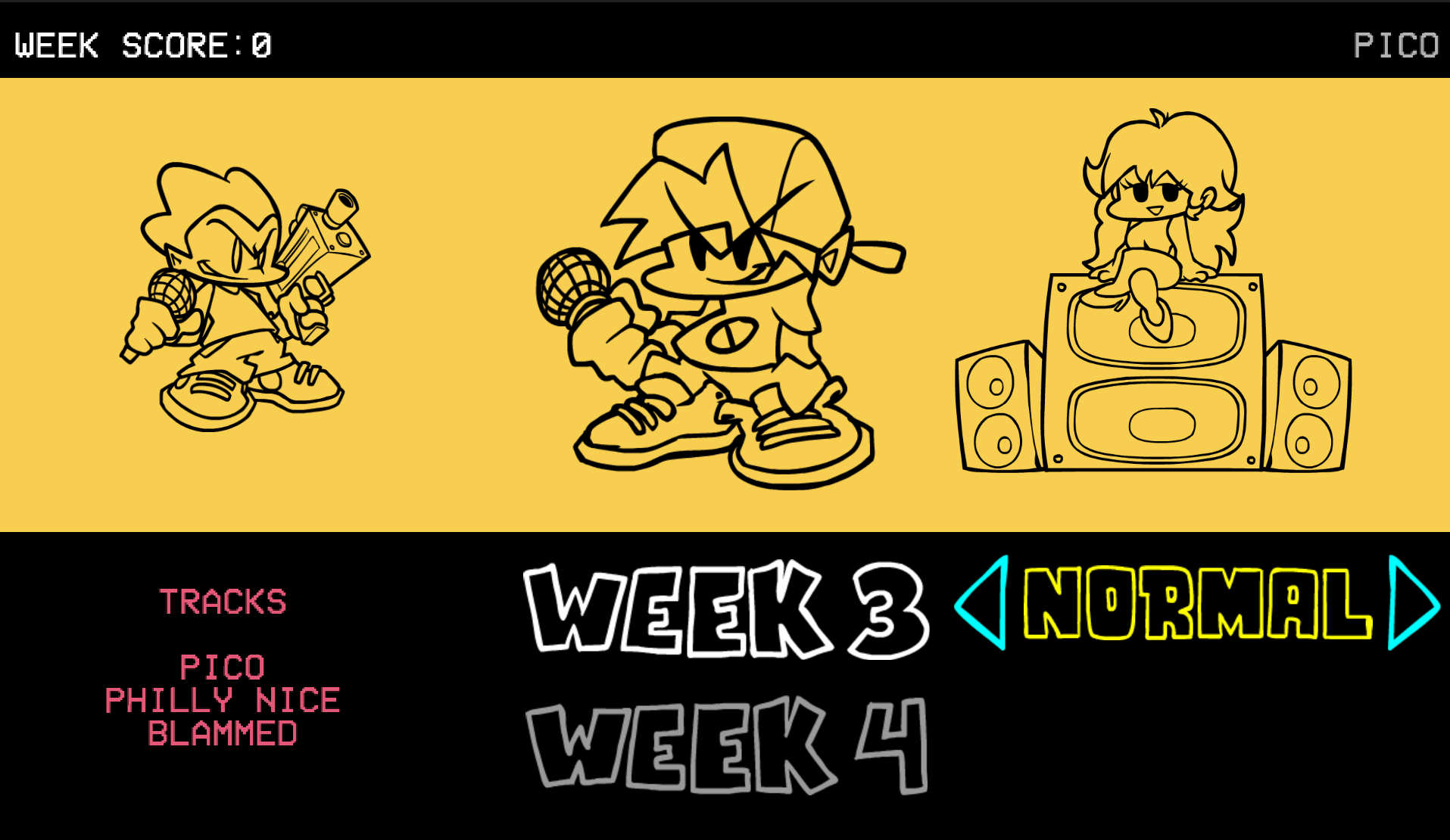
Let's break down what each part does:
The Week Tag
<week name="PICO" chars="pico,bf,gf" sprite="week3">
This is the main container for your week. Here's what each attribute does:
name - The title displayed in Story Mode (usually top-right corner)
- Example:
name="PICO"shows "PICO" as the week title - Can be anything you want:
name="MY COOL WEEK"

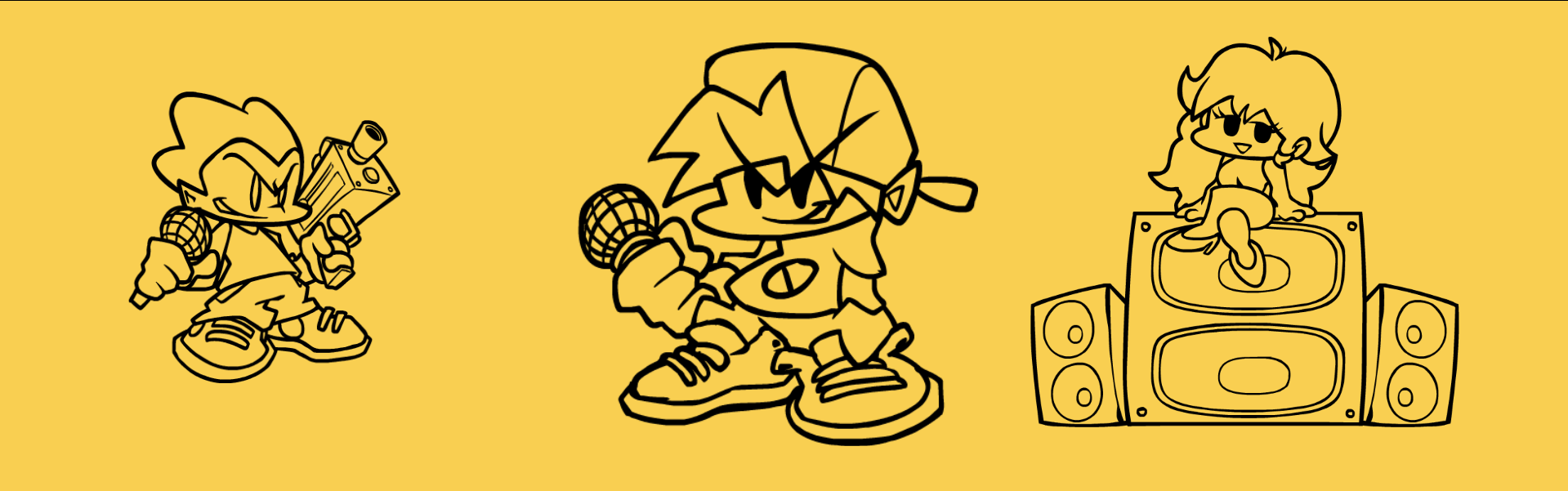
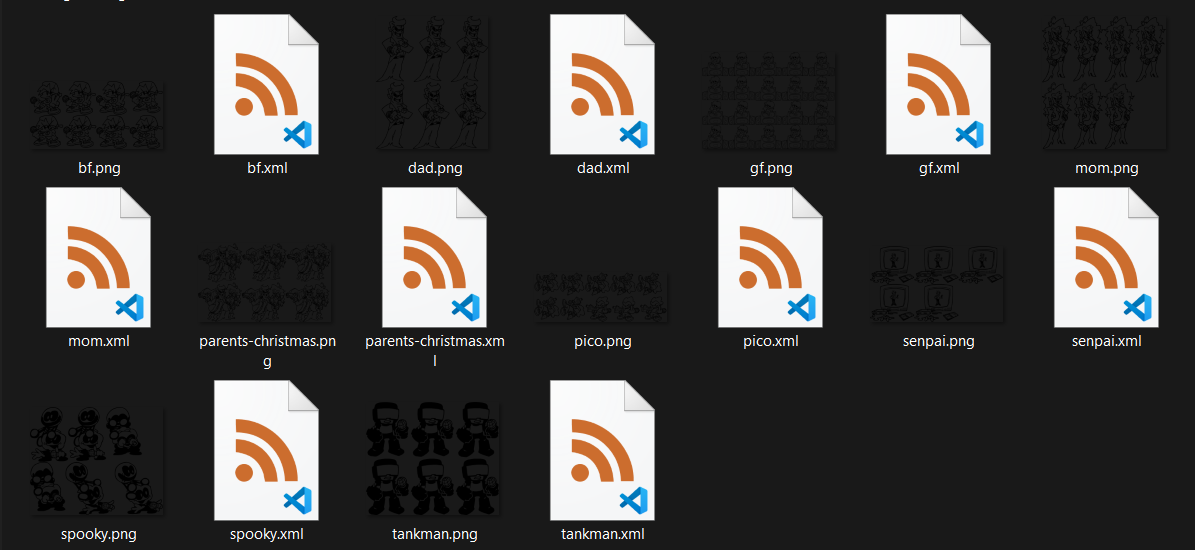
chars - The characters shown when hovering over the week
- Format:
opponent,boyfriend,girlfriend(no spaces!) - Location:
./images/menus/storymenu/characters/ - Example:
chars="pico,bf,gf" - These should match your character XML filenames
sprite (optional) - The week button image
- Location:
./images/menus/storymenu/weeks/ - Example:
sprite="week3"looks forweek3.pngin that folder - If not specified, it uses the XML filename

Adding Songs
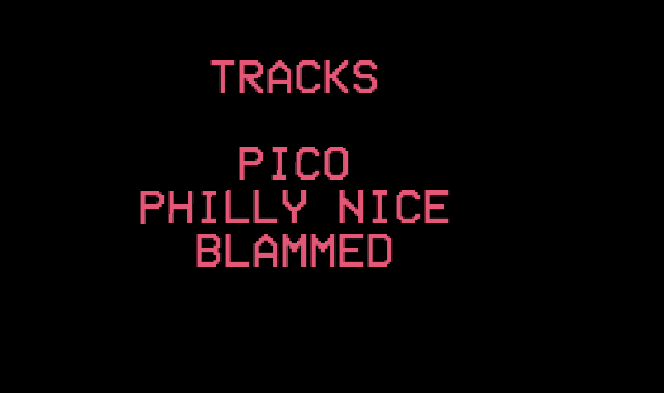
Songs are added using <song> tags inside the week:
<song>Pico</song>
<song>Philly Nice</song>
<song>Blammed</song>
Important:
- Song names should match your folder names in
./songs/ - Order matters! They'll play in the order you list them
- Song names are case-sensitive
Example: Complete Custom Week
Here's a full example for a custom week:
<week name="MY WEEK" chars="my-opponent,bf,gf" sprite="myweek">
    <song>Song One</song>
    <song>Song Two</song>
    <song>Final Song</song>
    <difficulty name="Easy"/>
    <difficulty name="Normal"/>
    <difficulty name="Hard"/>
</week>
Save this as ./data/weeks/weeks/myweek.xml
Setting Up Difficulties
By default, weeks use Easy/Normal/Hard. You can customize this with <difficulty> tags:
<difficulty name="Easy"/>
<difficulty name="Normal"/>
<difficulty name="Hard"/>
<difficulty name="Erect"/>
<difficulty name="Nightmare"/>
This gives your week 5 difficulty options instead of the default 3.
Custom Difficulties
You can create completely custom difficulties:
<difficulty name="Baby"/>
<difficulty name="Neo"/>
<difficulty name="Flip"/>
For custom difficulties, you need to add the difficulty icon:
- Location:
./images/menus/storymenu/difficulties/ - Name format: lowercase difficulty name
- Example:
chill.png,intense.png,impossible.png

Organizing Week Order (weeks.txt)
By default, weeks appear in alphabetical order. To control the order, create a weeks.txt file in ./data/weeks/:
week1
myweek
week3
tutorial
This makes weeks appear in that exact order in Story Mode.
Tips:
- One week filename per line
- Use
#for comments:# This is a comment - Only include weeks you want to appear
- Order from top to bottom
Example with comments:
# Base game weeks
week1
week2

# My custom weeks
myweek
another-week

# Secret week (unlocked later)
# secret-week
Quick Checklist
Before your week works, make sure you have:
- [ ] Week XML created in
./data/weeks/weeks/yourweek.xml - [ ] All songs exist in
./songs/with their folders - [ ] Week sprite exists at
./images/menus/storymenu/weeks/yourweek.png - [ ] Character XMLs exist in
./data/characters/ - [ ] Character sprites exist in
./images/characters/ - [ ] Difficulty icons (if using custom difficulties)
- [ ] Added your week to
weeks.txt(optional, for ordering)
Common Issues
Week doesn't appear:
- Check that the XML filename matches what's in
weeks.txt - Make sure the XML is in
./data/weeks/weeks/not just./data/weeks/
Characters don't show:
- Verify character names in
chars=""match your character XML files - Remember: no spaces in the
charslist!
Songs don't load:
- Song names must match folder names in
./songs/ - Check for typos and case sensitivity
Week sprite missing:
- Default location is
./images/menus/storymenu/weeks/ - PNG format required
- If not specified in XML, it uses the XML filename
That's it! You now know how to create custom weeks.
Now, what if you want to make your own Custom Week State? Well you can always grab all the week data with the StoryWeeklist class!
// import the Class from `funkin.menus.StoryMenuState.hx`
import funkin.menus.StoryWeeklist;

// StoryWeeklist.get(orderByTxt:Bool, loadCharacterData:Bool);
// So if it's (true, false), it will sort the week by the `weeks.txt`, and won't include character data.
var weekList:StoryWeeklist = StoryWeeklist.get(true, false);
var weeks:Array<WeekData> = weekList.weeks;

// you can optionally make it 1 variable by doing:
var weeks:Array<WeekData> = StoryWeeklist.get(true, false).weeks;
// since you don't need the actual class instance for anything besides getting the data 99.999% of the time.
The weeks array contains all the Week XML data as a WeekData typedef / structure.
You can then use this to get all the songs in the week, the name, id, difficulties, etc. This will allow you to make your own Custom Week State, and load into a Week through PlayState with the loadWeek function!
PlayState.loadWeek(weeks[0]); // loads the first week into PlayState
FlxG.switchState(new PlayState()); // Then we load PlayState to start the week!